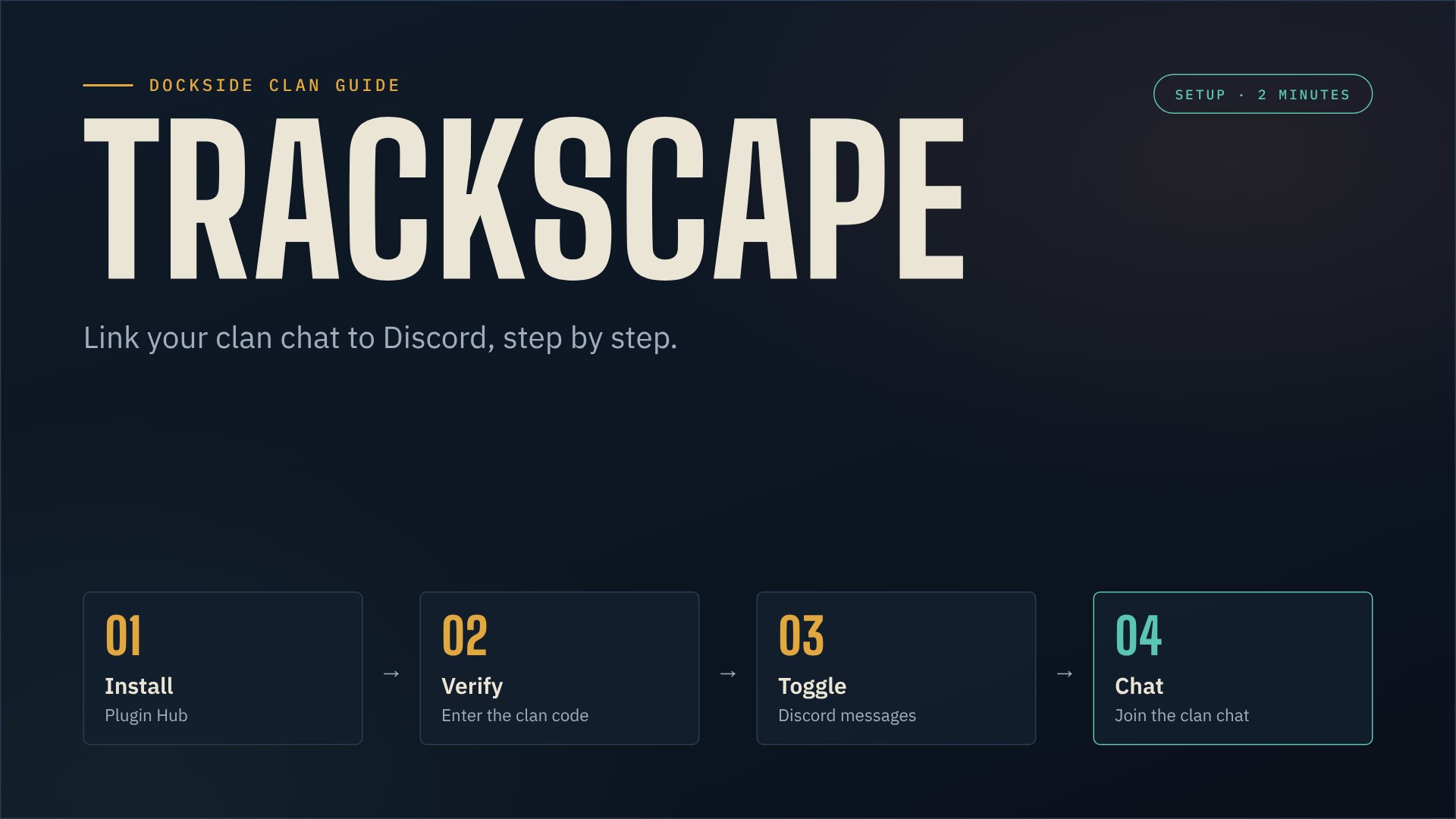
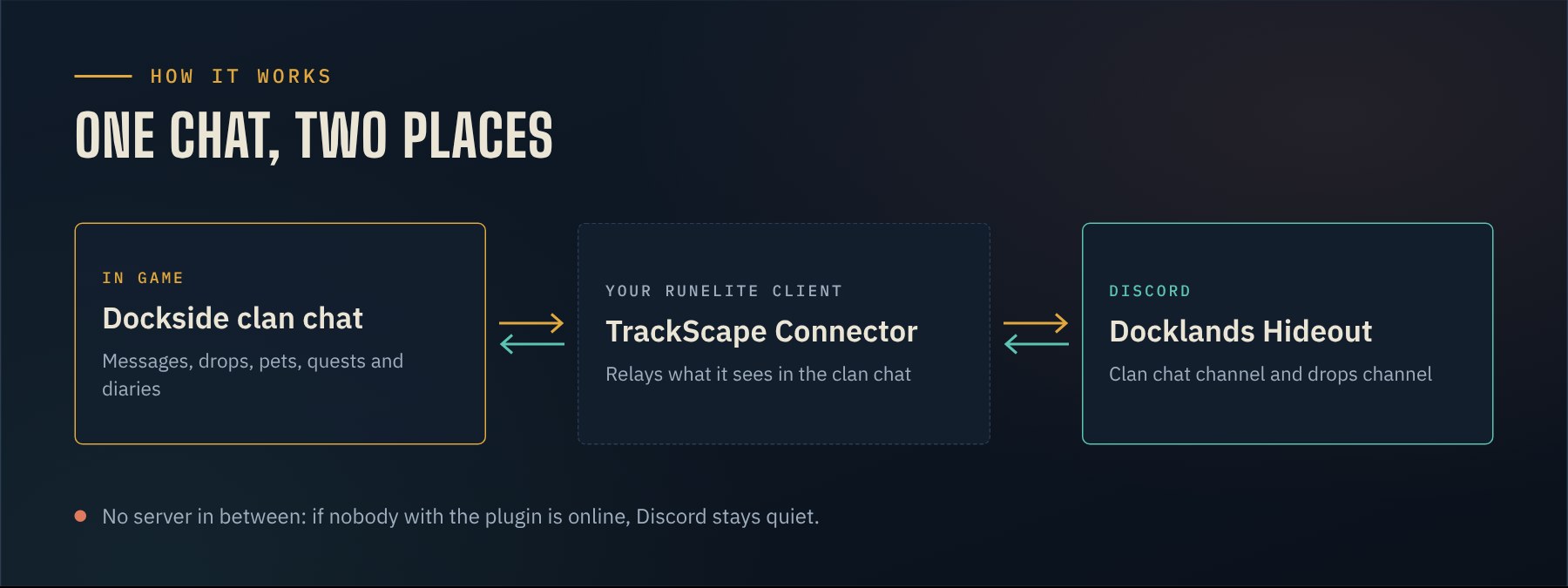
TrackScape links the Dockside clan chat with our Discord. Write in game and it shows up in Discord; reply in Discord and it shows up in game. This guide gets you set up in about two minutes.
What you need
- RuneLite. The plugin comes from the RuneLite Plugin Hub.
- A character in the Dockside clan.
- Access to our Discord, because that is where you get the verification code.
Step 1: Install the plugin
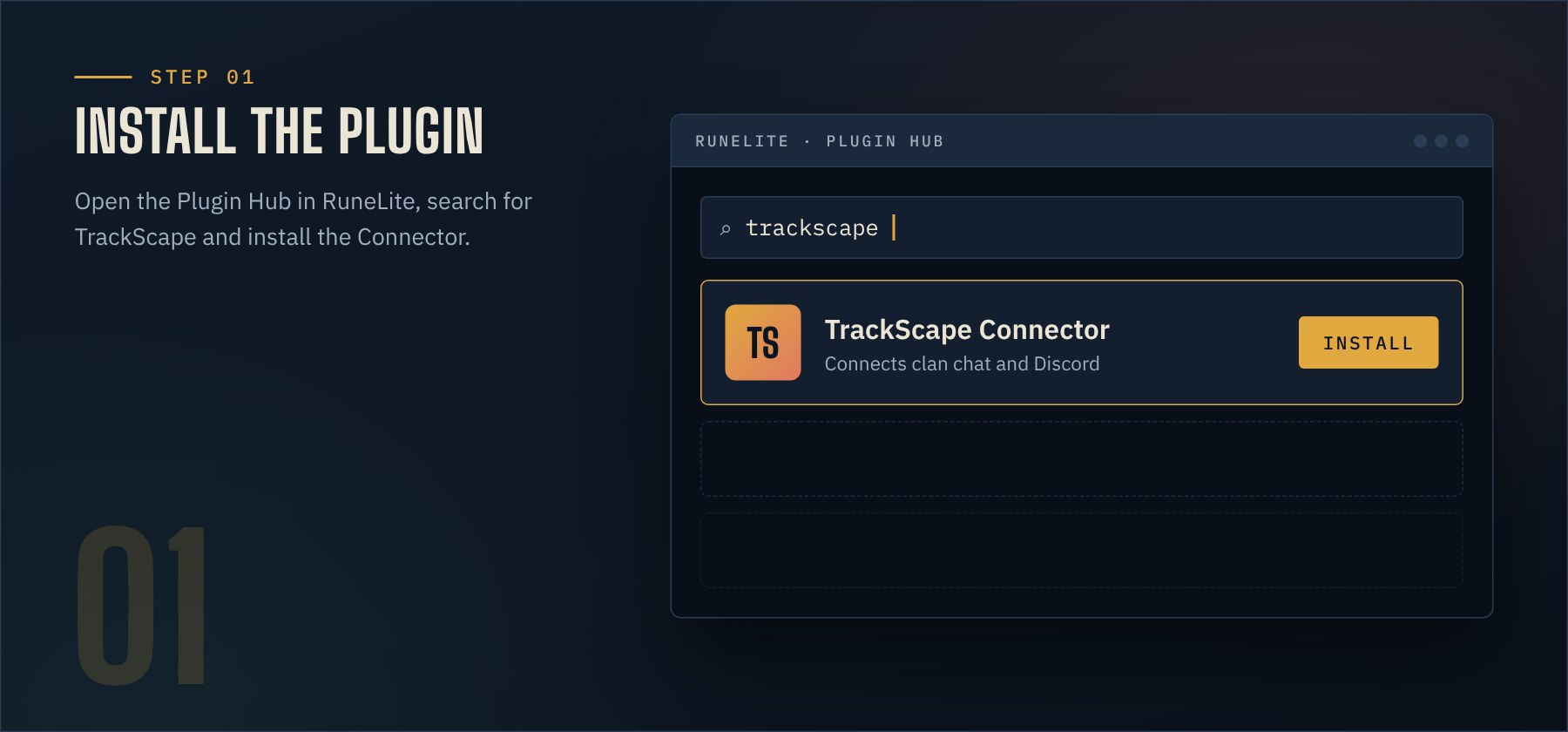
- Open RuneLite and click the wrench icon to open the Configuration panel.
- Open the Plugin Hub.
- Search for TrackScape.
- Install TrackScape Connector.
Step 2: Enter the verification code
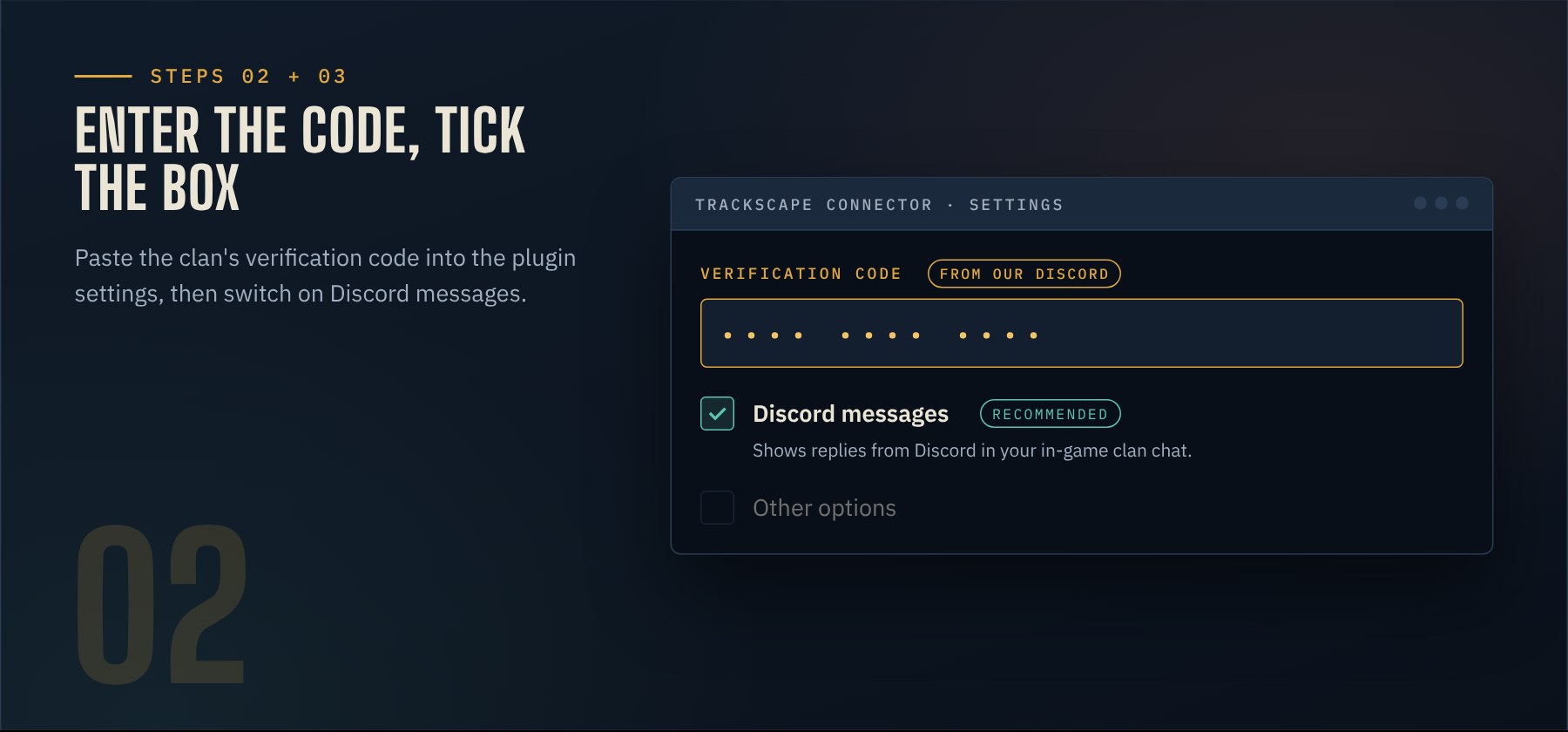
Back in your plugin list, find TrackScape Connector and open its settings. Paste the verification code into the plugin settings. You will find the code in the announcement on our Discord.
The code belongs to our clan, so please do not share it outside of Dockside.
Step 3: Switch on Discord messages
In the same plugin settings, tick the Discord messages checkbox. Without it, you only send to Discord but do not see the replies in game.
Step 4: Join the clan chat
Join the Dockside clan chat as usual and say hello. Your message should show up in the clan chat channel shortly after. Done.
What shows up where
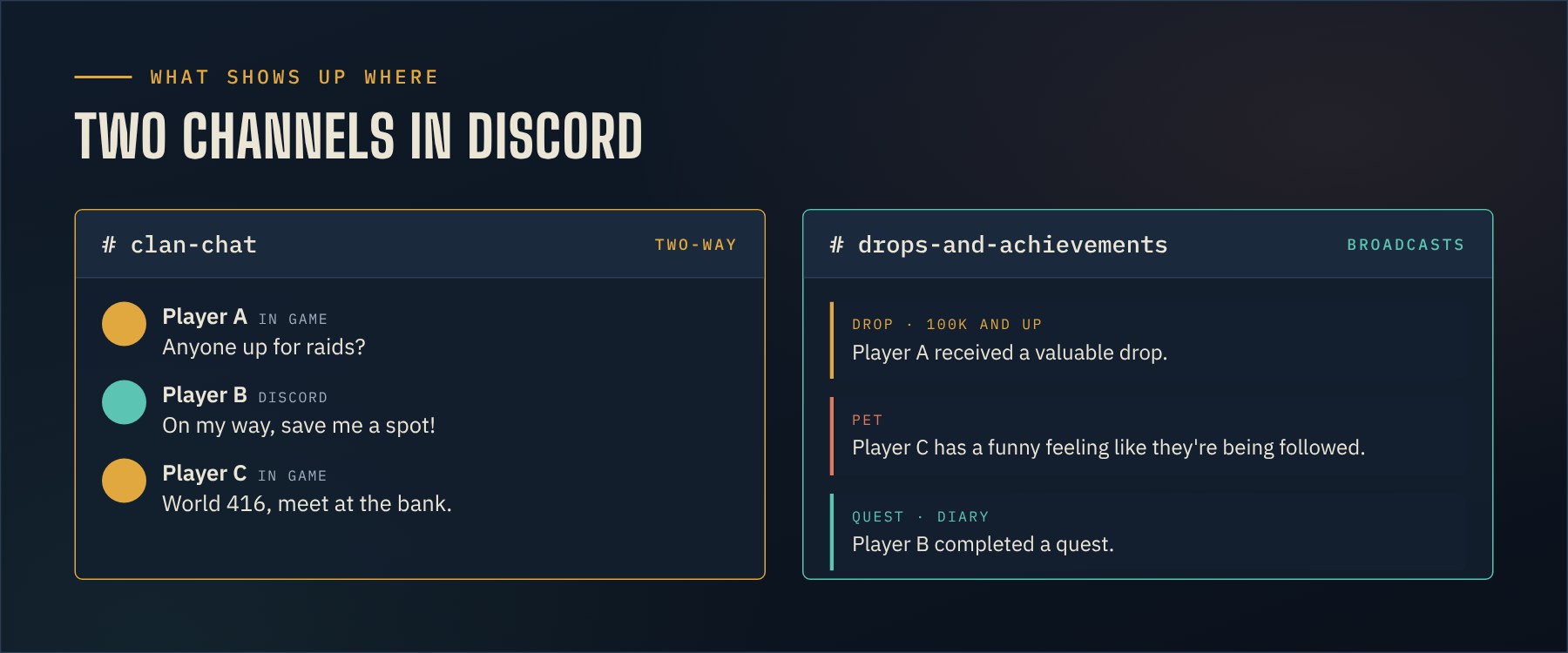
- Clan chat channel: the Dockside clan chat, live in Discord. Whatever you write here also shows up in game.
- Drops and achievements channel: drops from 100k, pets, quests, diaries and other clan achievements.
Good to know
- This runs through players’ clients, not through a server. The more of you have the plugin enabled, the more reliable it gets. If nobody with the plugin is online, the Discord stays quiet.
- Only what appears in the clan chat can be passed on. If something is not broadcast there, it will not reach Discord either.
Troubleshooting
- My messages do not reach Discord. Check that the plugin is switched on, that the verification code is entered completely and without extra spaces, and that you are in the Dockside clan chat.
- I do not see Discord replies in game. Tick the Discord messages checkbox from step 3.
- Still stuck? Open a ticket in our ticket channel.